
Users can set campaign targets and store them. To set a campaign target, users must first add the store to the campaign and save the schedule for each added store. Once the user selects an option (monthly, weekly, daily) and sets the target, they cannot reselect this option as the dropdown becomes disabled after target setting. Users can observe the default target in the store targets for monthly, weekly, and daily durations. The default target is calculated by allocating the campaign target to each store based on the schedule number of promoter leave days and other relevant factors. They have the ability to set a new target by clearing the default store target and entering the new target for the store. It is important to note that once the store target is set for one of the options (monthly, weekly, daily), users cannot select it again. On the store sale page, users can enter the actual store sales.
Campaign Targets
To set the Campaign target user should be on the campaign dashboard.
Step 1: Click on Sales/Target

Step 2: Select one of the option from the drop down.
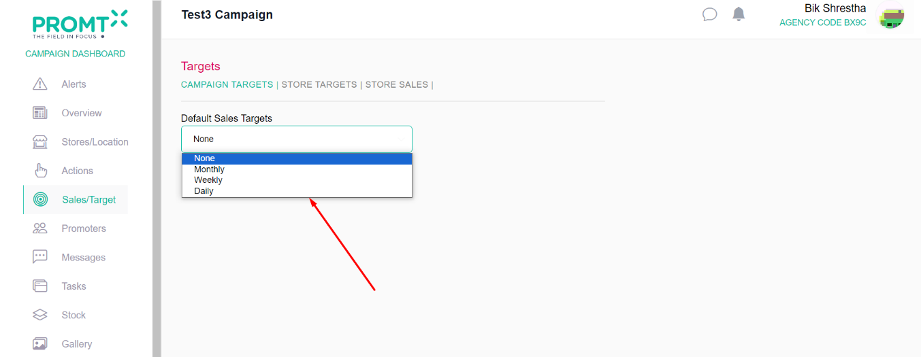
Step 3: Enter the target on the input field and click on submit button.
Note: The dropdown (Monthly, Weekly, and daily) becomes disabled once the target is set.

Store Targets
Step 1: Click on Store Target
To set the Store target user should be on the campaign dashboard.
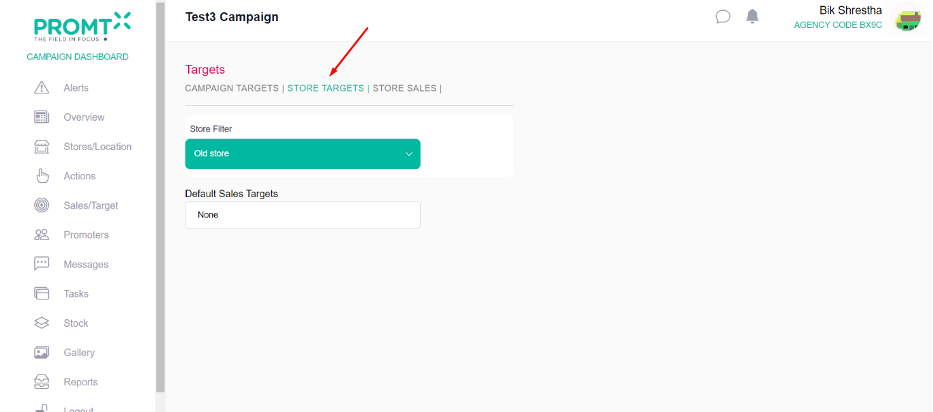
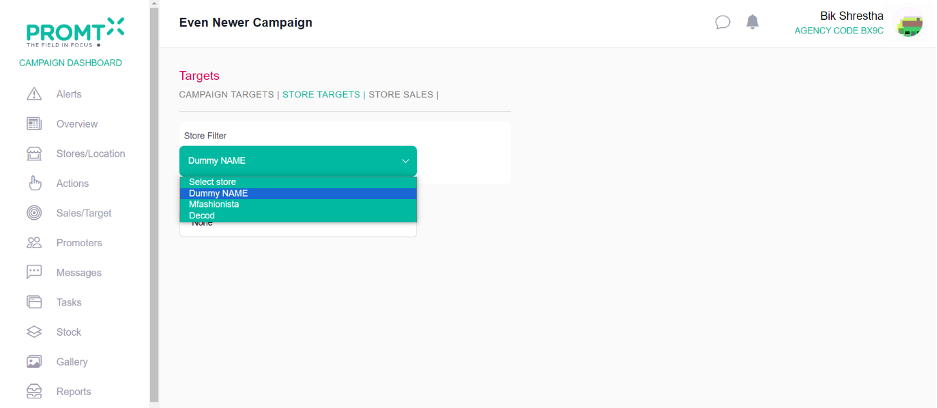
Step 2: Select the store from store filter the drop-down.
Step 3: Select the needed option (Monthly, Weekly and daily) from the option.
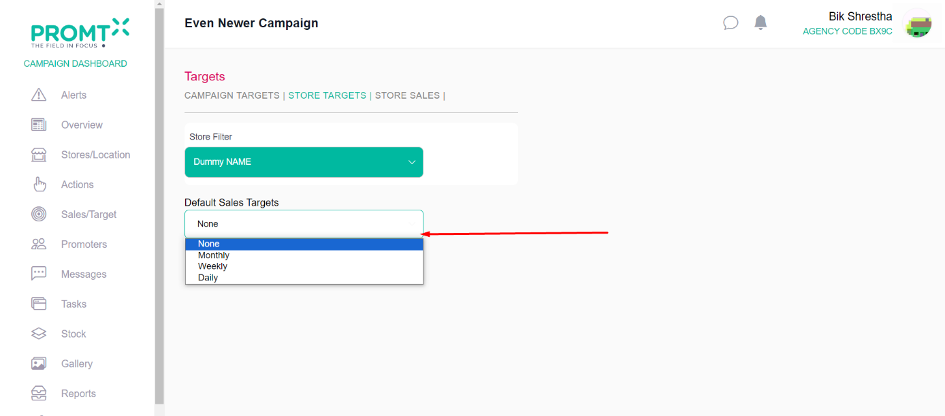
Step 4: Examine the input field.
Note: The system inherently displays the target for the store on a weekly, monthly, and daily basis by dividing the total campaign targets among all the stores. And user can also set the target by entering the number in the target input field.
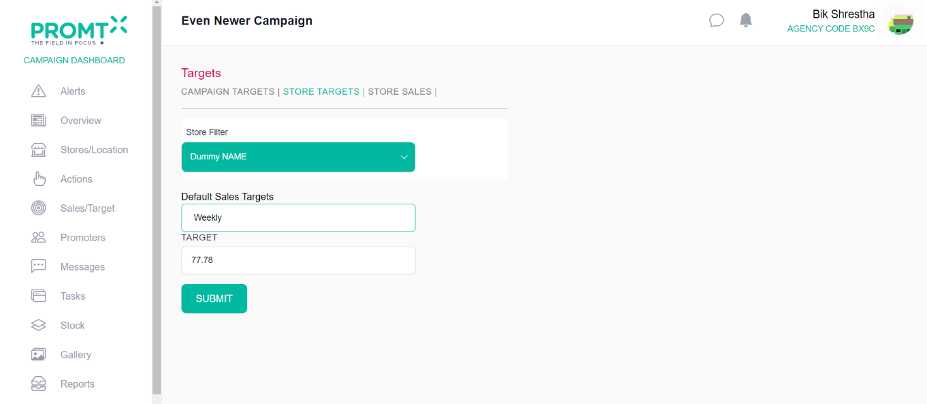
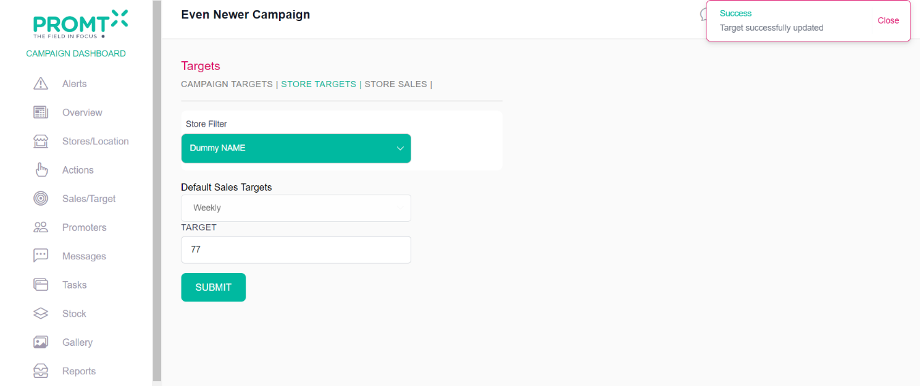
Step 5: Click on submit button.
Note: The dropdown (Monthly, Weekly, and daily) becomes disabled once the target is set.
Store Sales
“Store sales” define the actual store sales. The user should be on Campaign dashboard of sales/target page to enter the input sales.
Step1: Click on Store sales

Step 2: Select the store from the dropdown
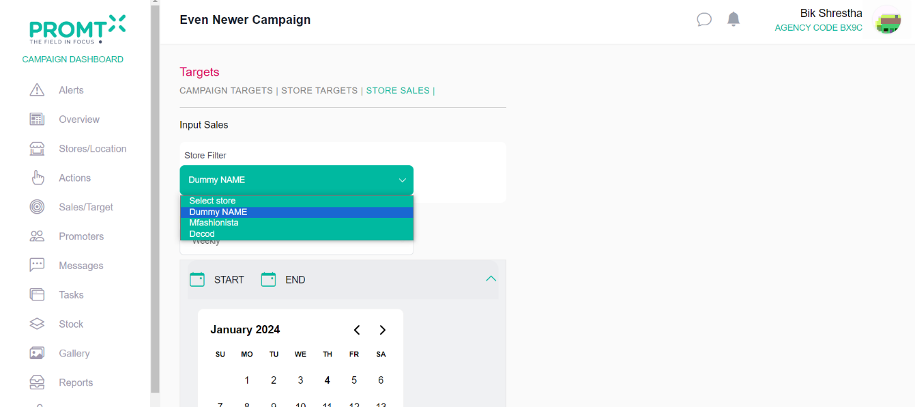
Step 4: Select start and end date from the calendar.
Note: The user has already established the weekly target, resulting in the default setting for in-store sales on a weekly basis. Therefore, the dropdown for this option is disabled.
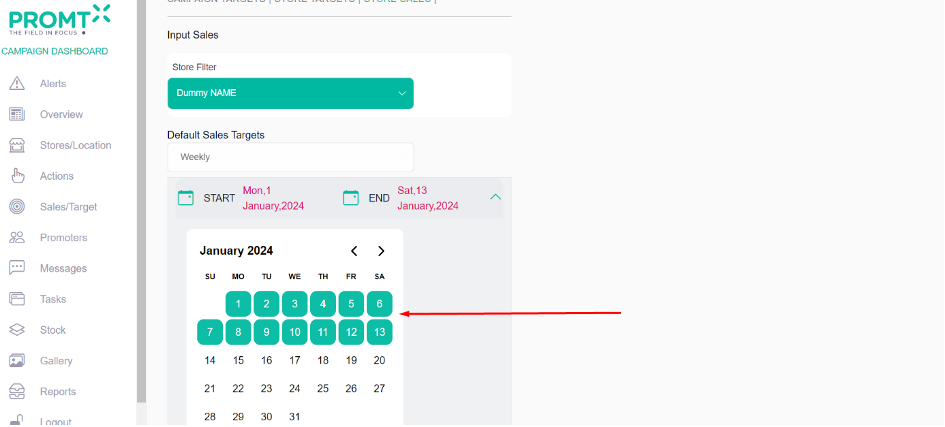
Step 5: Input the total sales in the designated field up to the selected date and click on submit button.

Note: Users can access the store sales targets as well as actual sales on the report page.